First: make sure they’re on
Settings → General → Keyboard shortcuts → enable. It ships enabled for most accounts, but Workspace configurations vary — and the number of "shortcuts don’t work" complaints that end here is considerable. Verify with one keypress: ? should open the full shortcut reference overlay. That overlay is also the only documentation you’ll ever need; this article’s job is telling you which of its rows matter.
The five that carry the load
- C — create. Full event editor from anywhere in the app. Paired with typed times ("2:30p", "next thu") in the fields, creation drops under ten seconds. This single key is most of the keyboard layer’s value.
- T — today. However far you’ve scrolled into March planning, one key returns you to now. The antidote to calendar-archaeology disorientation.
- D / W / M — day, week, month views. View-switching by mouse is three clicks through a dropdown; by key it is free, which changes how you use views — day for now, week for shape, month for horizon, fluidly.
- / — search. Jumps to the search box. With operators (a name, a keyword, a date range via the dropdown) it beats scrolling for any "when did we last…" question.
- Z — undo. The panic key: un-drags the event you just dropped on the wrong Tuesday, un-deletes the thing you just removed. Works for a short window after the action; knowing it exists converts drag anxiety into drag confidence.
The second tier: for people who schedule a lot
X — custom view (set it to 4 days in Settings → View options; the planning sweet spot between day and week). J / K or N / P — next/previous period without touching the mouse. G — go to date: a date-picker for jumping to "the 23rd" during scheduling calls, far faster than paging. E — open the selected event’s full editor directly (Enter previews; E edits). Delete — removes the selected event, which with Z behind it is safe enough for real use.
An honest note on limits
The keyboard layer covers navigation and creation, not the deeper machinery: guest juggling, room booking, recurrence editing, and find-a-time remain pointer work, and the mobile apps have no keyboard layer at all. That boundary is fine — the shortcuts’ actual job is making the frequent operations (jump, look, create, fix) cost nothing, so the pointer is reserved for the operations that genuinely need it.
Learning them so they stick
Not by memorizing the overlay: adopt one key per week, attached to the friction it removes — C the week you notice creation annoys you, T the week you get lost in March, Z the first time you mis-drag. Keys learned against felt friction survive; lists memorized on a Tuesday evaporate by Friday. Five weeks, five keys, and the calendar tab starts feeling like a tool instead of a webpage.
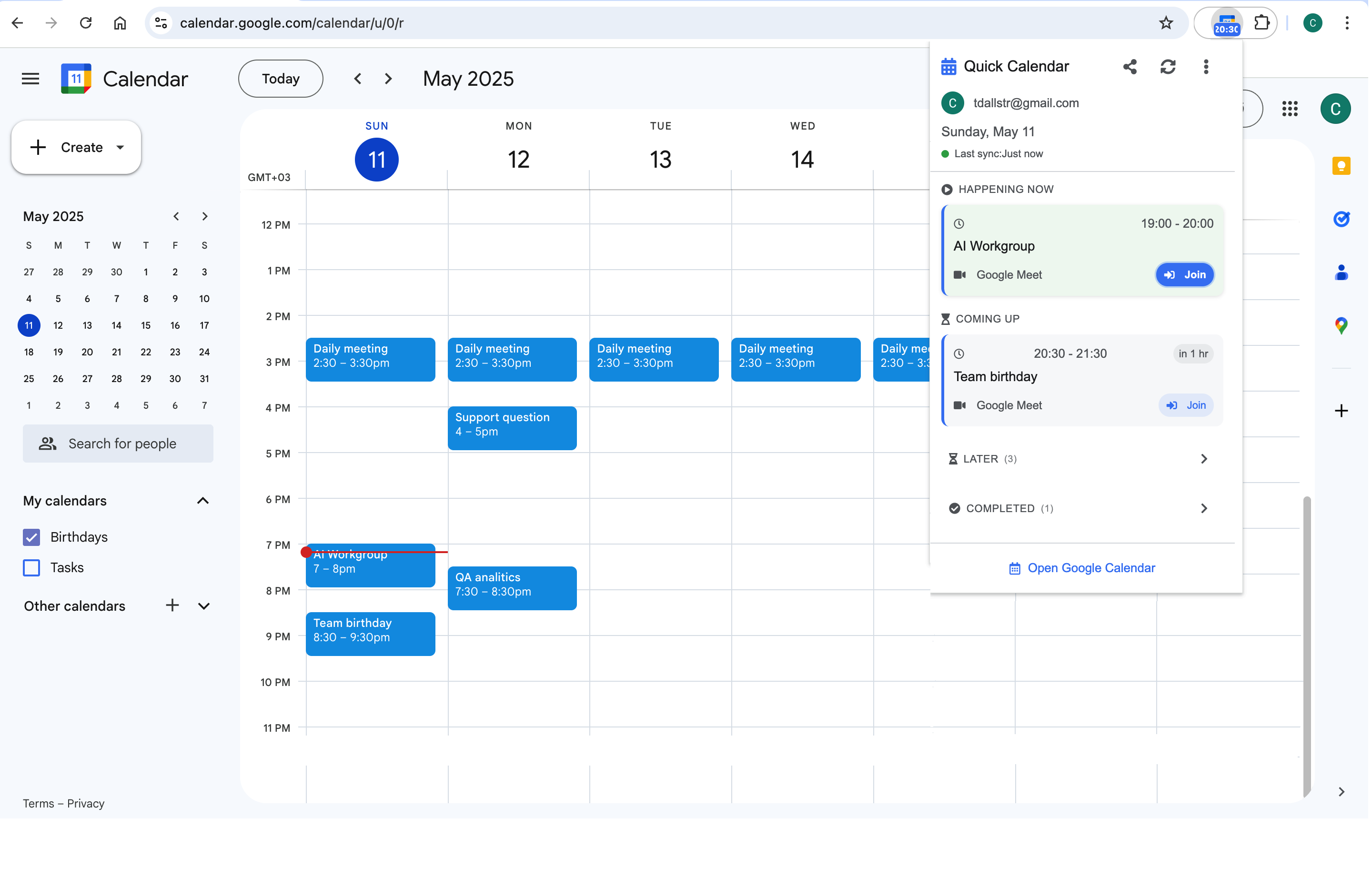
Shortcuts optimize the sessions inside the tab; they can’t fix the thirty daily visits that only needed one fact. Pair the keyboard layer with a toolbar glance — Calendar Extension for Google Calendar™ answers "what’s next, how long" in one click — and both surfaces end up doing the job they’re actually best at.
Frequently asked questions
Not a global one — RSVP remains inside the event (Enter to open the selected event, then act). The faster RSVP paths live outside the tab: Gmail’s inline invite buttons and the mobile notification actions. For invite-heavy roles, those two surfaces beat any in-calendar route.
The convention travels partially: Notion Calendar and Fantastical are keyboard-first with their own (richer) maps; Outlook Web has its own set. What transfers is the habit — people who learn one calendar’s keys adopt the next tool’s in days. The muscle memory is per-app; the reflex is portable.
Three usual causes: focus is inside a text field (shortcuts pause while typing — press Esc first), the shortcut setting is disabled (Settings → General), or a browser extension captured the key. Test with ? — if the overlay opens, the layer works and the issue is focus.
Two workable paths: a custom Chrome site-search keyword pointed at Google Calendar’s event-creation URL (type the keyword + title in the omnibox), or a toolbar extension’s quick-add for the "block 30 min at 15:00" class. Both spare you opening the full tab for small creations.